Set Up Private Voice Dictation on Your Mac
Press one key, talk, and your words are typed wherever your cursor is - email, docs, chat, the terminal, anywhere. It’s free voice-to-text, and unlike Apple’s dictation or most “free” transcription tools, everything happens on your computer - your voice is never sent to anyone’s servers.
The plan: install TypeWhisper (https://www.typewhisper.com/), then make the otherwise-useless Caps Lock key your “talk” button. About 10 minutes.
Step 1 - TypeWhisper: install + permissions
You can install it from Terminal - copy the block below, paste it into Terminal, and press Return. It fetches the latest official version from TypeWhisper’s own update feed (the same source the app’s updater uses), installs it, and opens it:
# 1) Look up the latest stable version from TypeWhisper's update feed
URL=$(curl -s https://typewhisper.github.io/typewhisper-mac/appcast.xml \
  | xmllint --xpath 'string(//item[not(*[local-name()="channel"])]/enclosure/@url)' -)

# 2) Download and install it into Applications (replacing any old copy)
curl -L -o /tmp/TypeWhisper.zip "$URL"
rm -rf /Applications/TypeWhisper.app
ditto -x -k /tmp/TypeWhisper.zip /Applications/
rm /tmp/TypeWhisper.zip

# 3) Open it
open -a TypeWhisper
echo "TypeWhisper installed."
(Prefer clicking? Downloading it from https://www.typewhisper.com/ and dragging it to Applications gets you the exact same app.)
Then two things only you can click:
- Grant the two permissions it asks for (System Settings → Privacy & Security): Microphone (so it can hear you) and Accessibility (so it can type the words into other apps).
- Enable launch at login in its settings.
Step 2 - Integrations: the transcription engine
TypeWhisper transcribes through plug-in “integrations.” Open Settings → Integrations → Marketplace and install:
- Parakeet - the speech-to-text engine (NVIDIA Parakeet TDT). Fast, accurate, 25 languages, runs entirely on your Mac. Make it the selected engine, and turn on vocabulary boosting in its settings (this lets your dictionary entries from Step 5 steer the engine). Then let it download its speech model - a one-time download of roughly half a gigabyte. It should start on its own once Parakeet is installed; if it doesn’t, open Parakeet’s settings and click Download. Wait for it to finish (a few minutes on normal Wi-Fi). Until the model is downloaded, dictation silently types nothing - if TypeWhisper seems installed-but-dead, this is almost always why.
- Filler Words - automatically strips “um,” “uh,” and friends from the transcript. Install it and you’ll sound articulate forever.
- (Optional) Apple Speech - a second on-device engine (needs macOS 26+). Nice to have as a fallback; keep Parakeet selected.
Everything in the panel should say Local (“3 Local · 0 Cloud” if you installed all three) - that’s how you know nothing leaves the machine.
Step 3 - Turn Caps Lock into your “talk” key
Why Caps Lock? TypeWhisper’s most comfortable hotkey needs a key you can hold
down to talk, and Caps Lock is perfectly placed and nobody uses it. We point
it at “F18” - a key your keyboard doesn’t physically have, so nothing else
ever conflicts with it - using hidutil, a tool built into macOS (Apple’s
own; no extra app, no driver, nothing sent anywhere). It’s reversible in one
command (see Uninstall at the bottom).
The block below does two things: remaps Caps Lock to F18 right now, and drops a small file in your account so the remap comes back automatically every time you log in.
Copy the whole block below and paste it into Terminal, then press Return:
# 1) Create the helper script that does the remap (Caps Lock -> F18)
SCRIPT="$HOME/Library/Application Support/Caps Lock Dictation"
cat > "$SCRIPT" <<'SH'
#!/bin/sh
# Remaps Caps Lock -> F18 so it can trigger TypeWhisper dictation.
# Runs Apple's built-in hidutil. Remove anytime (see Uninstall, below).
exec /usr/bin/hidutil property --set \
  '{"UserKeyMapping":[{"HIDKeyboardModifierMappingSrc":0x700000039,"HIDKeyboardModifierMappingDst":0x70000006D}]}'
SH
chmod +x "$SCRIPT"

# 2) Create the login item that runs that script at every startup
cat > "$HOME/Library/LaunchAgents/local.capslock-to-f18.plist" <<PLIST
<?xml version="1.0" encoding="UTF-8"?>
<!DOCTYPE plist PUBLIC "-//Apple//DTD PLIST 1.0//EN" "http://www.apple.com/DTDs/PropertyList-1.0.dtd">
<plist version="1.0">
<dict>
    <key>Label</key>
    <string>local.capslock-to-f18</string>
    <key>ProgramArguments</key>
    <array>
        <string>$SCRIPT</string>
    </array>
    <key>RunAtLoad</key>
    <true/>
</dict>
</plist>
PLIST

# 3) Turn it on now (and at every future login)
launchctl unload "$HOME/Library/LaunchAgents/local.capslock-to-f18.plist" 2>/dev/null
launchctl load  "$HOME/Library/LaunchAgents/local.capslock-to-f18.plist"

echo "Done. Caps Lock now sends F18."
That’s the last command-line you’ll touch. Two small notes:
-
In System Settings → General → Login Items you’ll see a new item called Caps Lock Dictation - that’s this (see below). It will also say “unidentified developer”; that’s normal for any hand-made login item and is harmless. Leave it on - it’s what re-applies the remap each time you log in.

-
Caps Lock no longer toggles capitals while this is on - that’s the point. You can still type ALL CAPS by holding Shift.
Step 4 - Bind the hotkey in TypeWhisper
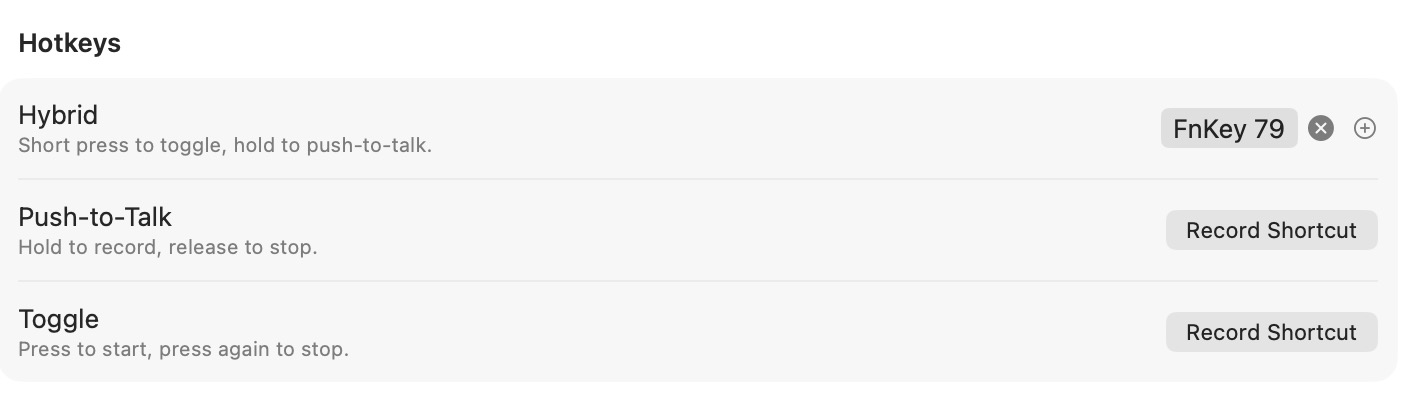
Open Settings → Hotkeys, find Hybrid, click to record it, and press Caps Lock once. It will register as FnKey 79 - that’s TypeWhisper’s name for F18, and it’s the same on every Mac. Save.
One key, two behaviors:
- Hold Caps Lock → talk while holding, release to stop. (For quick sentences - most of your use.)
- Tap Caps Lock → recording starts and stays on; tap again to stop. (For long, hands-free dictation.)
Leave the separate Push-to-Talk and Toggle slots alone - Hybrid covers both. It should look like this:
Step 5 - Dictionary: fix the words it gets wrong
The engine will mishear names - your company, your clients, people you talk about. Fix each one once in Settings → Dictionary with a Correction (misheard form → what should be typed), and it’s right forever after.
Examples from my own list:
| When it hears… | It types… |
|---|---|
| Webdogs / web dogs | WEBDOGS |
| Y three K | Y3K |
| Tuesday drocket | two-stage rocket |
Add corrections as you go - every time dictation flubs a name, take ten seconds to add the fix.
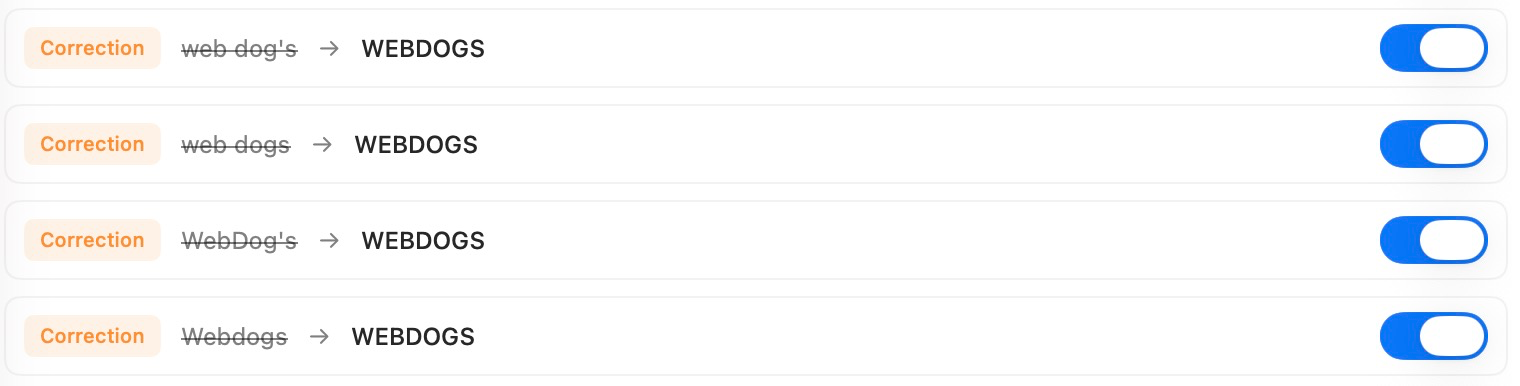
WEBDOGS: add all four brand corrections -
Webdogs,web dogs,web dog's, andWebDog's, each → WEBDOGS - so the company name always lands right. It looks like this:
That’s it
Hold Caps Lock, say “this is so much faster than typing,” let go, and watch it appear. From here on, anywhere you’d type, you can talk.
Tips
- Speak naturally and don’t bother saying “um-free” sentences - Filler Words cleans that up.
- Punctuation and capitalization happen automatically - just talk normally, no need to say “comma” or “period.” (If you ever want them, spoken commands still work as a fallback.)
- Dictate the messy first draft by voice, then tidy by keyboard - drafting is where voice wins big.
Uninstall / restore normal Caps Lock
Changed your mind, or just want Caps Lock back to normal? Nothing here is permanent. Paste this block into Terminal and press Return:
# Stop the remap from coming back at login, remove its files, and undo it now
launchctl unload "$HOME/Library/LaunchAgents/local.capslock-to-f18.plist" 2>/dev/null
rm -f "$HOME/Library/LaunchAgents/local.capslock-to-f18.plist"
rm -f "$HOME/Library/Application Support/Caps Lock Dictation"
hidutil property --set '{"UserKeyMapping":[]}'

echo "Done. Caps Lock is back to normal."
That removes the login item and its helper script and restores Caps Lock immediately - no reboot needed. (To also remove TypeWhisper itself, just drag the app to the Trash; nothing else was installed.)
What got added to your Mac, in full: one app (TypeWhisper) and two small
text files -
~/Library/Application Support/Caps Lock Dictation (the helper script that
runs Apple’s built-in hidutil) and
~/Library/LaunchAgents/local.capslock-to-f18.plist (the login item that runs
it). No drivers, no background services beyond that login item, nothing sent
off your machine. The block above removes both files.